



1 - IAM Lab
Identity and Access Management
AWS Management Console
Give acces to control permission and user, and create user groups
Activate MFA on root account (email address with QR code on mobile (virtual MFA) ) root account : Mode Dieu
In identity access, its on a global access (not in an specific region)
add user
create user
AWS access type :
-
Programmatic access
- Enables an access key ID and secret access key for the AWS API, CLI, SDK, and other development tools.
-
AWS Management Console access
- Enables a password that allows users to sign-in to the AWS Management Console.
add user to group
- creation of group
- select policy of managed policy (ex Administrator Access)
- send access key ID and secret and pwd to user
- user will connect to https://akiros-training.signin.aws.amazon.com/console
different policy
AdministratorAccess : Provides full access to AWS services and resources : anything on anything
{ "Version": "2012-10-17", "Statement": [ { "Effect": "Allow", "Action": "", "Resource": "
account setting
A password policy is a set of rules that define the type of password an IAM user can set. Learn more Password policy
This AWS account uses a password policy
users - security credentials
console password != access keys & secret ?
Access keys : Use access keys to make secure REST or HTTP Query protocol requests to AWS service APIs. For your protection, you should never share your secret keys with anyone. As a best practice, we recommend frequent key rotation
SSH keys for AWS CodeCommit : Use SSH public keys to authenticate access to AWS CodeCommit repositories.
What are IAM roles?
IAM roles are a secure way to grant permissions to entities that you trust. Examples of entities include the following:
- IAM user in another account
- Application code running on an EC2 instance that needs to perform actions on AWS resources
- An AWS service that needs to act on resources in your account to provide its features
- Users from a corporate directory who use identity federation with SAML
conclusion
- IAM is universal (pas de prise en compte reegion)
- root account !: account created when first setup your aws accoutn (admin access)
-
new users
- have NO permission firtly
- are assigned ot Access Key ID & Secret Access Keys
-
console password != access keys & secret ?
- access keys & secret pour interroger l api
- setup multifactor access on root account
- rotation of own pawd policies
2 - EC2 - 101
Quick Resizable compute capacity in the cloud : Amazon Elastic Compute Cloud
provide virtual machine
price : pay for what you, pay less more you use, pay less more your reserve
pricing model
- On demand : Les instances à la demande vous permettent de payer la capacité de calcul à l'heure ou à la seconde (60 secondes minimum) sans engagement à long terme. De cette manière, vous n'avez pas à subir le coût ni la complexité de la planification, de l'achat et de la maintenance du matériel : l'ensemble de ces frais fixes, habituellement élevés, est transformé en des coûts variables bien moindres.
- Reserved : 1 à 3 ans de reservation
- consommation connue et preditable
-
reserved pricing types :
- standard
- convertible
- scheduled
- spot (bid whatever price)
- dedicated hosts
instance types
F1 : Field Programmable Gate Array -> Genomic research I3 : Hight Speed storage -> NoSQl, Data Warehousing P3 : High GPU -> ML and Bitcoin mining
FIGHT(boxing) DR(doctor) MC(ireland) PX(pixie) ZAU(australia)
https://aws.amazon.com/fr/ec2/instance-types/
3 - EC2 Lab
- Service - Compute - EC2
- Choose AMI (Machine Image)
- Amazon Linux 2 AMI (HVM), SSD Volume Type - ami-01c72e187b357583b
- Choose an instance type
- T2 micro
- Configure Instance Details
- Network : VPC : Amazon Virtual Private Cloud (VPC) ; You can create a VPC and select your own IP address range, create subnets, configure route tables, and configure network gateways.
- Subnet : A range of IP addresses in your VPC that can be used to isolate different EC2 resources from each other or from the Internet. Each subnet resides in one Availability Zone.
- Placement group : A range of IP addresses in your VPC that can be used to isolate different EC2 resources from each other or from the Internet. Each subnet resides in one Availability Zone.
- Shutdown behaviour : stop or terminater
- Tenancy : You can choose to run your instances on physical servers fully dedicated for your use.
- Users details : bootstrap group
- Add storage : Your instance will be launched with the following storage device settings.
- volume type : root
- Add tags
- configuration of security groupes
- it s virtual firewall aloowing communication between port
- can create security group : Type (SSH or HTTP), Protocol (TCP), Port Range (22, 80), Source (IP one or custom)
- review
- create a key pair (public and private = asymatric key) :
- name
- Save it
- launch instance (terminal or plugin or connect (EC2 instance connect based on ssh))
$ ls
MyUse1KP.pem
$ mkdir SSH
$ mv MyUse1KP.pem
$ cd SSH
$ CHMOD 400 MyUSE1KP.pem # modification of permission
$ ssh ec2-user@MYIPV4IP -i MyUSE1KP.pem
$ sudo su


$ yum update -y
$ yum install httpd -y #patched instance into a web server
$ nano index.html # puis créer une petite page html
$ service httpd start
$ chkconfig on #
4 - Security Group Basis - Labs
Security groups = collection of fire rules that restrict the traffic network for the instance
-
Edit inbound rules : Inbound rules control the incoming traffic that's allowed to reach the instance.
- All inbound traffic is blocked by default
Security Groups associated with i-01c443205406e90b2
Ports   Protocol    Source  aws-cloud9-ajallais-f2b0539af89c437ab43773dc8c3016b4-InstanceSecurityGroup-1LRG2SCQCWHDZ
22  tcp 15.188.210.32/27, 15.188.210.64/27
-
Edit outbound rules : Outbound rules control the outgoing traffic that's allowed to leave the instance.
- all outbound traffic is allowed
-
Multiple
- several security group attached to an EC2 instance
- several EC2 instance attached to a security group
- Modificaiton of rules takes effect immediately
- Security groups are Statefull : port in both sens
We can not :
- blacklist an individual port or IP, we have to use Network Access Control List
- deny rules ( but we can specify new rules)
- Service - Compute - EC2
- Display instance -> see securoty group for eachh instance
- NETWORK & SECURITY - Security Groups
5 - EBS 101
Amazon Elastic Block Store provides persistent block storage volume for use with amazon EC2 instance
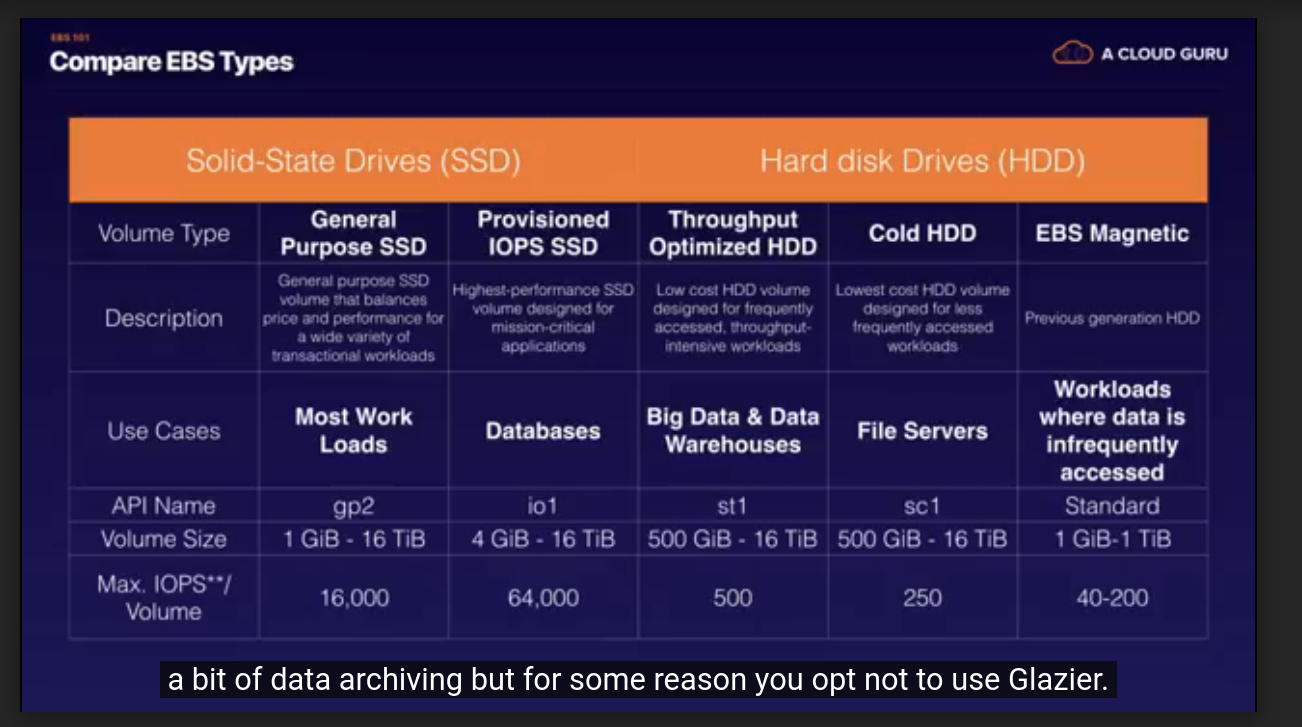
5 types of EBS Storage :
- General Purpose (SSD) = general
- Provisionel IOPS (SSD) = most expensive -> Databases
- Throughtput Optimised Hard Disk Drive (HDD) = low cost -> Big Data & Warehousing
- Cold Hard Disk Drive (HDD) = lowest cost -> Files Serveur
- Magnetic = previous generation of HDD
6 - Volumes and SnapShot
EBS : Amazon Elastic Block Store : Amazon Elastic Block Store (EBS) est un service de stockage par bloc hautes performances et simple d'utilisation conçu en vue d'une utilisation avec Amazon Elastic Compute Cloud (EC2) pour les charges de travail exigeantes en débit et en transactions à n'importe quelle échelle. https://aws.amazon.com/fr/ebs/?ebs-whats-new.sort-by=item.additionalFields.postDateTime&ebs-whats-new.sort-order=desc
- Service - Compute - EC2
- Running instance
- Terminate EC2 instance
-
virtual machine (EC2) and virtual hard disk (volume) should be in the same region
- laquelle est determinante ? EC2 car la première
- if we stop EC2 the Volume stop as welll few minutes later
elastic block store - Volumes :
- st1 : optimized one
- sc1 : HDD
- gp2 :
Action on volumes
- modify : we can modify on the fly : storage type, volume etc.
- create a snapshot -> create a version (photo of the disk at a given times)
-
create an image -> transfert to a new instance
- copy in a different region
- copy AMI in a different region based on an image
to remember
- Volumes exist on EBS. EBS = virtual hard disk
- snapshot exist on S3
- snapshot are incremental : only the block that have changed since your last snapshot are moved to s3
- should stop the instance before taking instance (it s better)
- We can create AMI's from Snapshot
-
to move an EC2 volume from one region to another :
- take a snapshot of it
- create an AMI from the snapshot
- copy the AMI from one region to antoehr
- use the copied AMI to laucn the new EC2 instance in the new region
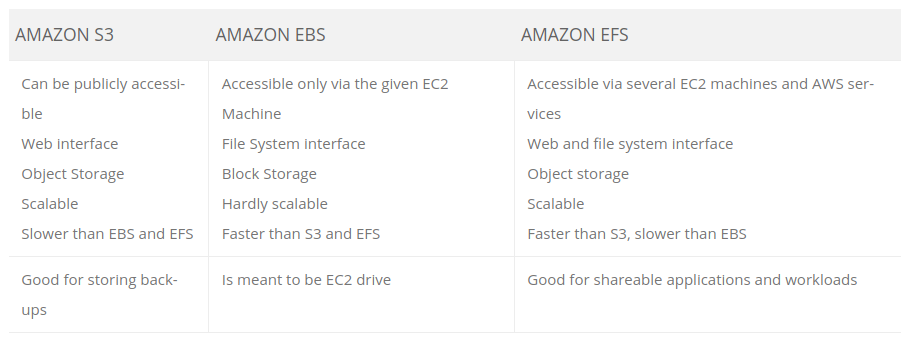
Amazon S3 vs EFS vs EBS Comparison
https://www.msp360.com/resources/blog/amazon-s3-vs-ebs-vs-efs/
7 - AMI Types (EBS vs Instance Store)
Selection criteria
- Region
- Operating system
- Architecture
- launch permission
-
storage for the root device :
- EBS (created from a template stored in Amazon S2)
- Instance Store : Epheral storage (created from an Amazon EBS Snapshot)
pratical
- Service - Compute - EC2
- Community AMIs
- amzn2-ami-hvm-2.0.20200520.1-x86_64-gp2 - ami-01c72e187b357583b
- add storage : Your instance will be launched with the following storage device settings. You can attach additional EBS volumes and instance store volumes to your instance, or edit the settings of the root volume. You can also attach additional EBS volumes after launching an instance, but not instance store volumes
- volume type are instance store
- reboot
we can not see AMI storage but only instance store volume
difference between system status checks and instance status checks ?
to remember
- Instances Store Volumes are someteimes called Ephemeral Storage
- Innstace store volumes cannot be stopped
- EBS backed instance can be stopped
- you can reboot both (no loose of data)
-
by default, both root volumes will be deleted on termination
- on EBS volumes you can tell AWS to keep the root device volume
8 - ENI vs ENA vs EFA
https://www.edureka.co/community/37301/difference-between-efa-eni-and-ena-eni
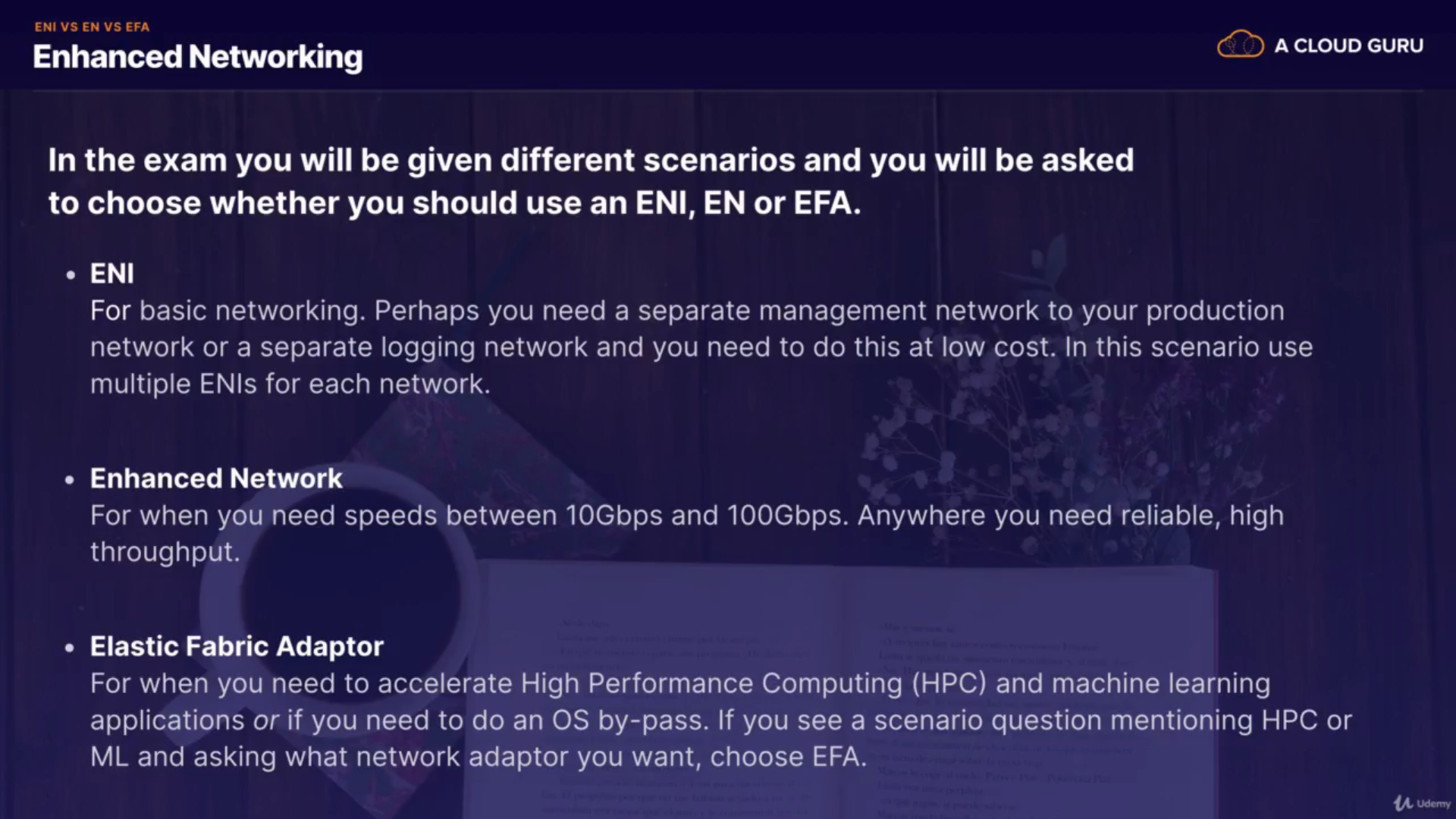
An ENA ENI is used to serve traditional IP networking features that is necessary to support VPC. An EFA ENI is used to provide all the functionality of an ENA ENI and also hardware support for applications which communicates directly with the EFA ENI even without involving the instance kernel using an extended programming interface.
ENI : Elastic Network Interface = virtual network card EN : Enhanced Networking = single root I/O -> high performace networking capabilities EFA : Elastic Fabric Adapter = network device, can attach to your EC2 to boost HPC and ML application
HPC : High Performance Computing
9 - Encrypted Root Device Volumes and Snapshot
Root device volumes = Disk
to remember
- Snapshots of encrypted volumes are encrypted atomatically
- Volumes restored from encrypted snapshot are encrypted automatically
- You can share snapshot, only if they are unencrypted
- these snapshots can be shared with other AWS accounts or made public
-
you can encrypt root device volumes upon creation of the EC2 instance
- if we do not have an encrypt root device volume to process for making an unencrypted, do the following :
- Create a snapshot of the unencrypted root device volume
- create a copy of the snapshot and select the encrypt option
- create an ami from the encrypted snapshot
- use that AMI to laucnh new encrypted instances
10 - CloudWatch 101
https://aws.amazon.com/fr/cloudwatch/ Amazon CloudWatch est un service de surveillance et d'observabilité conçu pour les ingénieurs DevOps, les développeurs, les ingénieurs en fiabilité de sites (SRE) et les responsables informatiques. CloudWatch vous fournit des données et informations exploitables dont vous avez besoin pour surveiller vos applications, réagir aux variations de performance sur l’ensemble du système, optimiser l’utilisation des ressources et avoir une appréciation unifiée de la santé opérationnelle. CloudWatch collecte les données opérationnelles et de surveillance sous forme de journaux, de métriques et d’événements pour vous permettre d’avoir une appréciation unifiée des ressources, des applications et des services AWS exécutés sur AWS et sur des serveurs sur site. Vous pouvez utiliser CloudWatch pour déceler des comportements anormaux dans vos environnements, définir des alarmes, visualiser les journaux et les métriques côte à côte, agir automatiquement, faire des dépannages et trouver les informations utiles au bon fonctionnement de vos applications.
to remember
- Cloud watch is used for monitoring performance
- Cloud watch can monitor most of AWS (ex : Applications)
- Cloud watch with EC2 will monitor every 5minutes by default
- you can have 1 minute intervals by turnin in detailed monitoring
- you create Cloud watch alarms trigger notifications
- Cloud watch (performance) != CloudTrail (auditing, monitor API calls in the AWS plateform)
11 - CloudWatch Lab
to remember
-
monitoring
- standard = 5 minutes
- detailed = 1 minutes
-
what can we do with cloudWatch
- dashboard (to see what s happening in your AWS environnement)
- alarms (notify when a particular threshold are hit)
- events (respond to state changes in your AWS ressources)
- logs (aggregate, moniitor and sotre your log data)
12 - EFS Lab
Elastic Files System Automaticaly add or remove storage ressource to adapt to application needs
to remember
- support the network File System version 4 (NFSv4) protocol
- you only pay for the storage used
- can scale up to petabytes
- can support thousand od concurrent NFS connection
- Data is stores accress multiple AZ's within region
-
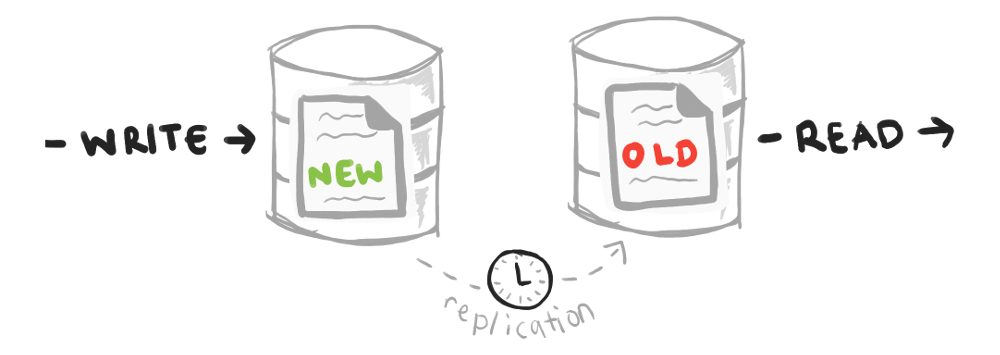
Read After Write Consistency

13 - FSX for Windows & FSX for Lustre
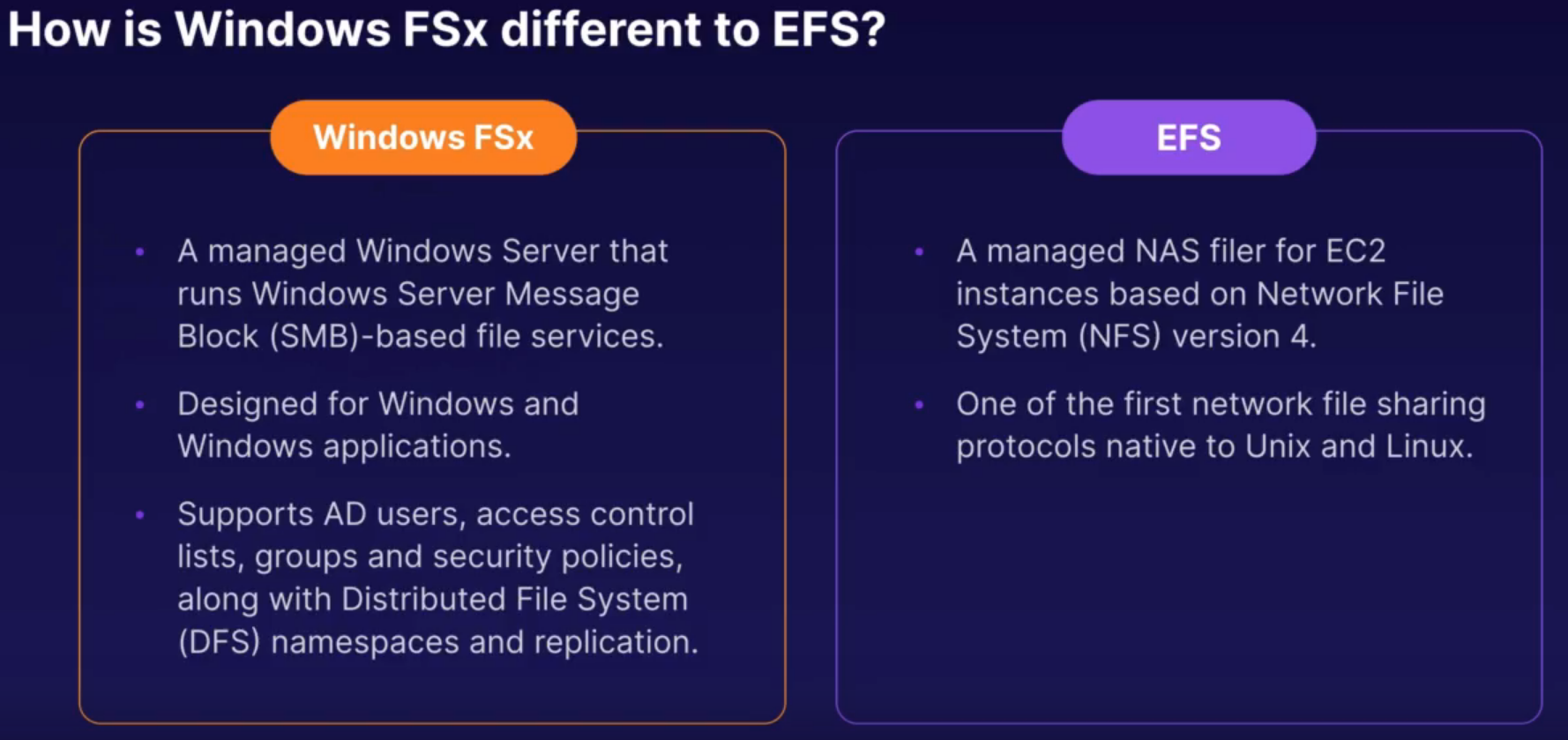
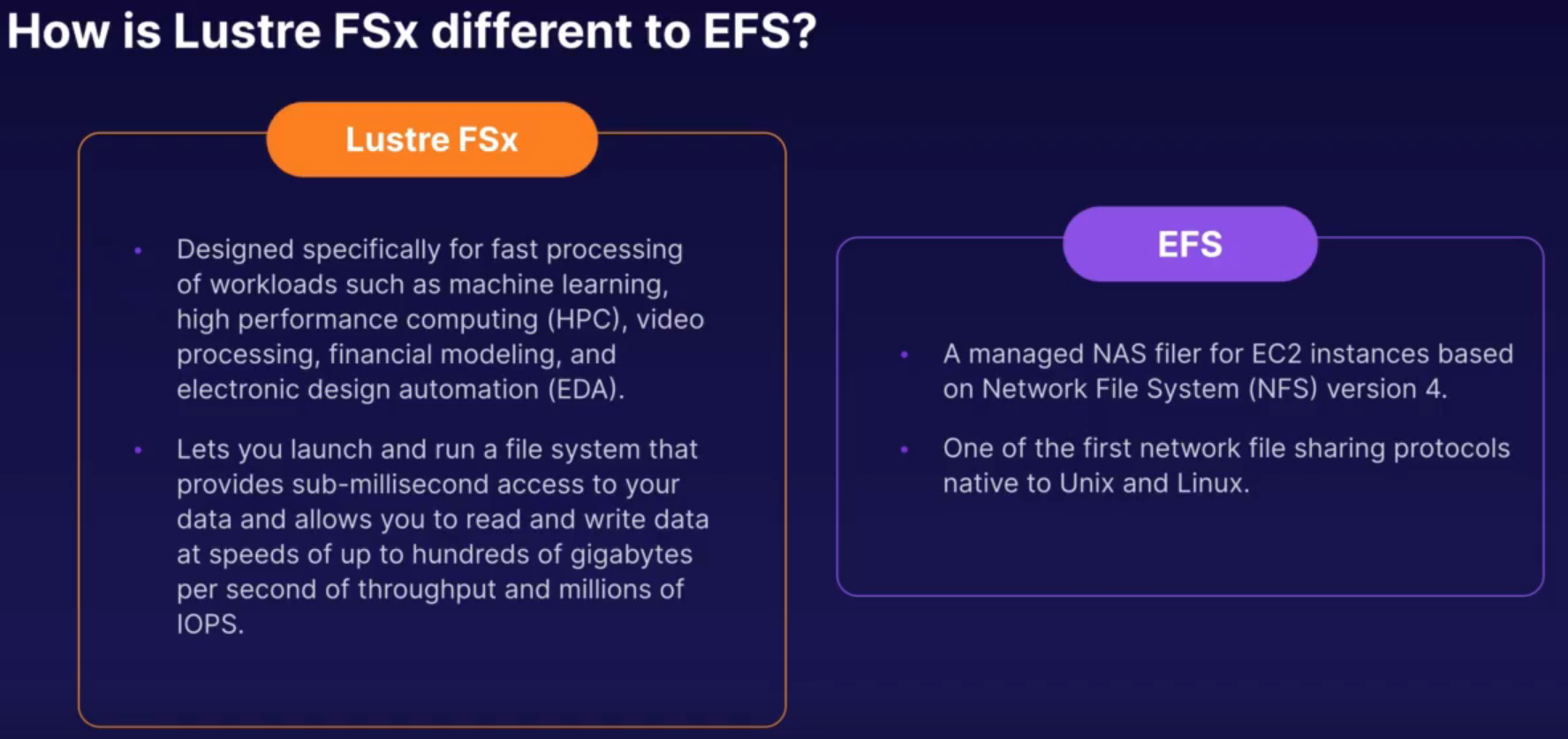
- EFS : distributed highly resilient storage for linux app
- Amazon FSX for Windows : centralised storage for Windows app
- Amazon FSx for Lustre : high speed, high capacity distributed storage for HPC performance (Lustre can store data directly on s3)
14 - EC2 Placement groups
Spread placement group = grp of instance that are each place on distinct underlying harware
recommanded ofr app with small number of critical instance that should be kept separate from each other
= INDIVIDUAL INSTANCES
to remember
- a clustered placement group can't span multiple AZ
- a spread placement and partitionned group can
- the name you specify for a placement group must be unique within your AWS account
- only certain types of instances can be laucnhed in a placement group (Comput Optimized, GPU, Memory Optimized, Storage Optimized)
- AWS recommend homogenous instances whitin clustered placement groups
- can not merge placement groups
-
can move an existing instance into a placement group :
- before you move the instance must be in the stopped state
- you can move or remove an instance using AWS CLI or AWS SDK (not in the console yet)
15 - AWS WAF
AWS WAF = web app firewall :
-
to monitor HTTP and HTTPS request that are forwarded to :
- Amazon CloudFront
- application load Balancer
- API Gateway
- to control access to yout content
to remember
how to block malicious IP addresses ?
AWS WAF != Networks ACLs